
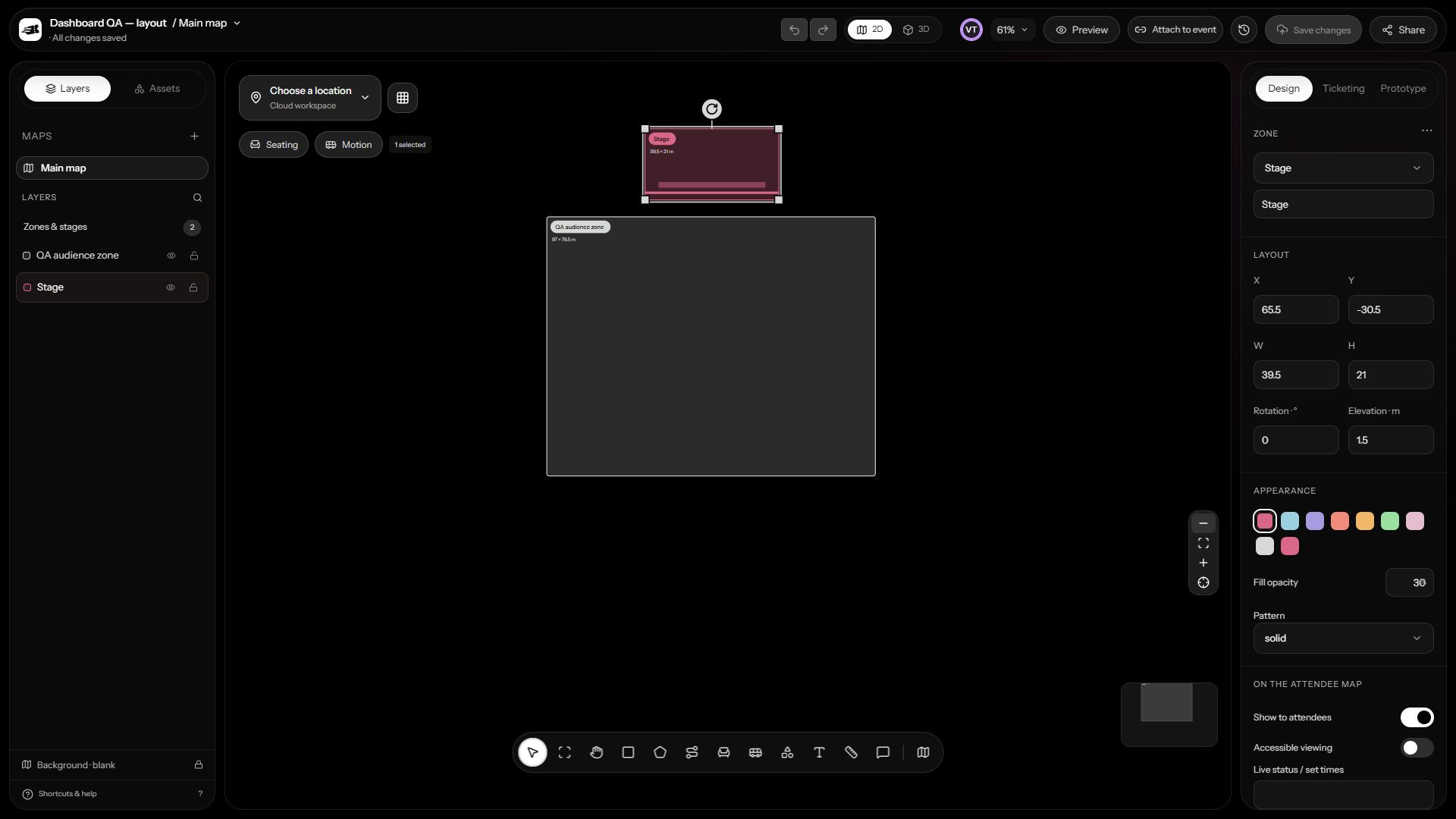
Start a map
- Select the correct host workspace and open Event maps.
- Choose Create event map. Start from a venue template, uploaded floor plan, or blank canvas.
- Give the workspace and board recognizable names, then set the venue and dimensions.
- Place your first objects and use the Properties panel to adjust them.
- Wait for All changes saved before leaving. Reopen the map from Event maps to continue later.
Understand the editor
The canvas is the area where you arrange the venue. Tools create or select objects. Layers help you find objects, while Properties changes the current selection. A workspace can contain multiple boards, each with its own background, dimensions, and audience.
Use the editor modes for layout, tracing a background, seating, motion, 3D, and attendee preview. On a small screen, Layers and Properties may be available as bottom tabs.
Save, attach, publish
A signed-in map saves to the selected organization’s cloud library and can exist without an event. Attaching it chooses which draft event will use it. Updating the booking map makes the active board’s eligible seats available to that event’s booking setup. Publishing the event is a separate final action.