Generate seating
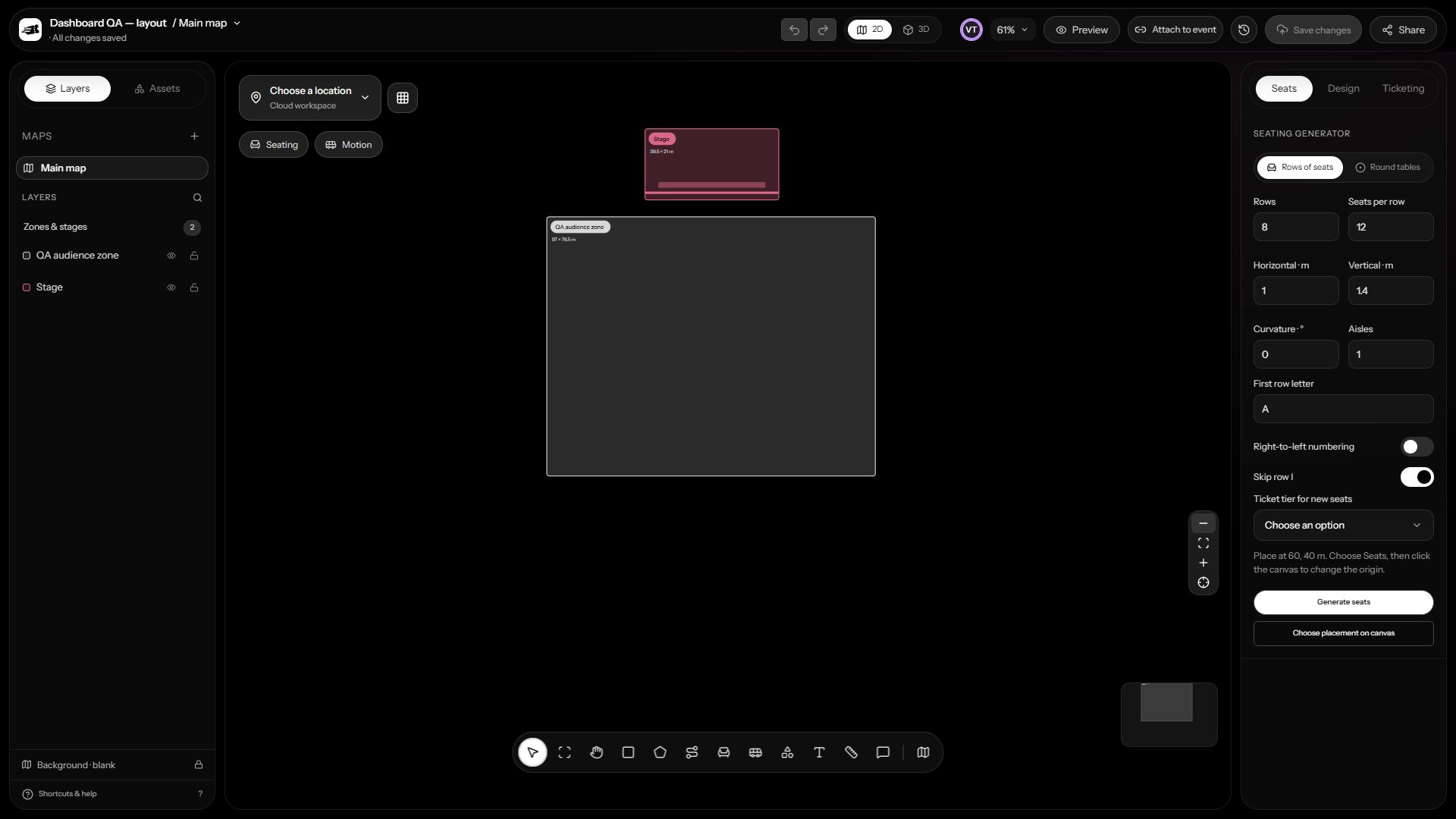
- Open Seating mode and choose rows of seats or round tables.
- Choose the placement point on the canvas.
- Set the number of rows and the seats or tables per row, then adjust horizontal and vertical spacing.
- For rows, set the first row letter, numbering direction, optional skip of row I, curvature, and aisles. For tables, set seats per table.
- Choose the ticket tier for the new seats and generate the layout.
- Inspect labels, spacing, and accessibility. Select individual seats with Alt-click when they belong to a group.
Generator limits
| Setting | Range |
|---|---|
| Rows | 1–30 |
| Seats or tables per row | 1–40 |
| Horizontal / vertical spacing | 0.5–20 metres |
| Curvature | −90° to 90° |
| Aisles | 0–5 |
| Seats per table | 2–16 |
Assign ticketing properties
In Ticketing, manage planning tiers with a name, price, and color, then assign a tier to selected seats. When you attach a map to an event, re-check these assignments against the event’s actual seated ticket types.
Use seat availability and accessibility controls to express the plan. Hold selection for sponsors marks a planning hold. It is not an attendee’s timed checkout reservation.
Before making seats bookable
Every seat included in the applied booking map must be marked available and assigned to a seated ticket type from that event. Exclude non-bookable planning seats from the attendee-facing layout. Verify the event’s active booking map after applying it.